Why should we care about performance?
When you work on the front end, users constantly point out performance problems, big and small. Thanks to the widely held belief that “the web is always slower than apps,” the web always demands more optimization work than native app development.
I remember that back when I developed server-side rendered (SSR) pages, we were relatively free from these problems. No matter how heavy a page was or how much memory it used, as long as the current screen somehow got by, the page would be fully reloaded on the next navigation, so there was no need to worry much or rush a fix.
Today, however, many web pages are delivered to users through client-side rendering (CSR). These pages have gradually evolved into applications (single-page applications, SPAs) that use a single page loaded by the browser to show all kinds of virtual pages and popups, and to provide countless features.
Unlike with server-side rendering, performance problems in these web apps are critical for users. Because the page never reloads, they can degrade the whole experience for as long as the app is in use. That is why I think solving performance problems matters more now than ever.
In this post, based on the performance problems I have run into as a front-end developer, I share how I currently define performance and how I approach performance problems. Finally, I briefly touch on the benefits of Chrome DevTools as a tool for solving them. Please read it with an easy mind.
Defining performance
“The popup takes way too long to open!”
If a user says this, you can guess that performance is the problem even without knowing exactly what performance means. A developer would then look at the code that opens the popup, refactor duplicated code, improve inefficient loops, and open the popup again to see whether anything improved.
But nothing has improved. Measured with the console.time API, there is a clear gain: processing that took 200ms now takes 20ms, a tenfold reduction. Yet when you actually open the popup, you cannot feel any difference.
This is an example of how I approached my first performance problem. The approach had several issues, but my biggest mistake was limiting the cause of the problem to the JavaScript code running in the browser.
In the end, the problem was solved by changing how the server requested data from the database. In other words, the JavaScript performance issue was only a tiny part of the whole process.

The image above shows, along a timeline, how the browser requests the data a popup needs, receives it, and displays it on screen. The only part I had tested and improved was the last step in the image: “displaying the data received from the server on screen.”
The simple dictionary meaning of performance is “throughput per unit of time,” and the word is interpreted a little differently depending on the field. When I worked on the problem above, I took performance very narrowly to mean “throughput per unit of time in the JavaScript engine,” and approached the problem the wrong way.
What I learned afterwards is that on the front end, we need to think about performance more broadly. In the example above, the definition should cover the entire process starting from the moment the user clicks the button that opens the popup. So I personally define performance as follows.
Throughput per unit of time from the moment a user interaction occurs until the final result is shown to the user
Looking at the whole process with this definition in mind, I think you can pinpoint the part that actually causes the problem. Since that experience, I prefer to work on the front end only when a meaningful performance gain can be expected there.
When the browser is clearly the problem
If you look at performance broadly and conclude that the front end is the main cause, you start changing the JavaScript code. But even after refactoring and cutting down loops, performance shows no sign of improving. Let’s look at a simple reproduction below.
const originArray = new Array(5000).fill(1);
const $app = document.getElementById('app');

console.time('Method 1');
var array = originArray.map((v, i) => i);
var sum = array.map((i) => i + $app.offsetHeight);
console.timeEnd('Method 1');
If you were to improve the two lines between the console.time calls, you would probably first apply the following change, which effectively reduces the number of loops.
console.time('Method 2');
var sum = originArray.map((v, i) => i + $app.offsetHeight);
console.timeEnd('Method 2');
If you check the measured time in the console, you will see that the difference is small, and the modified code sometimes even takes longer. Now let’s apply the code below and compare the timings of all cases at once.
console.time('Method 3');
var offsetHeight = $app.offsetHeight;
var array = originArray.map((v, i) => i);
var sum = array.map((i) => i + offsetHeight);
console.timeEnd('Method 3');
The results show an incomparably large performance gain, even though the loops were not improved and a line of code was actually added.
💡 You can try this test yourself at this link.
Two things in this experiment may seem puzzling.
- JavaScript arrays are not ordinary arrays and are weak at iteration, yet the second method had no effect.
- Merely reading offsetHeight once in advance produced a huge performance gain.
Here are the answers.
- Modern JavaScript engines are optimized so that arrays holding only data of the same type and memory size behave like dense arrays, which are fast to iterate by index.
- offsetHeight reads the measured height of a DOM element rendered on screen, and it is a property that is very slow to read.
Whether you know or understand why the code above is fast is not the point of this post. The point of this example is that memorizing every browser’s behavior, optimization algorithms, and the performance characteristics of each API is quite a chore, and that improving only the visible efficiency of code is a very ineffective way to improve performance.
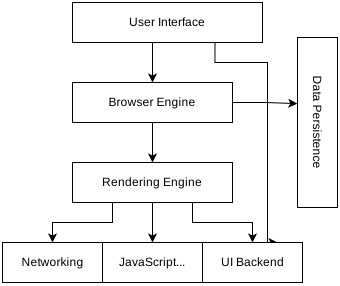
The image above is a common high-level diagram of a browser’s architecture. Some say modern browsers are already about as complex as operating systems. I doubt many developers, myself included, have memorized and fully understood how browsers are structured and how they work.
I can’t say this theoretical knowledge is unimportant, but you can’t just dive into a swamp of deep knowledge when a user’s performance problem needs fixing right now.
So you come to feel the need for a tool that can accurately evaluate performance on your behalf and point out the cause of the problem, so that you can solve problems like the ones above quickly even without complete knowledge.
In the end, you need tools
As mentioned above, when a performance problem occurs, it is very hard for a developer to pinpoint the cause just by reading code. Most articles you find by searching only cover common problems, so it is also hard to find a solution that fits the problem you are facing.
In the end, you have to diagnose and solve the problem yourself somehow, and there are many performance evaluation and diagnostic tools on the market to help. The most famous one, which is free and already installed on most PCs, is Chrome DevTools.
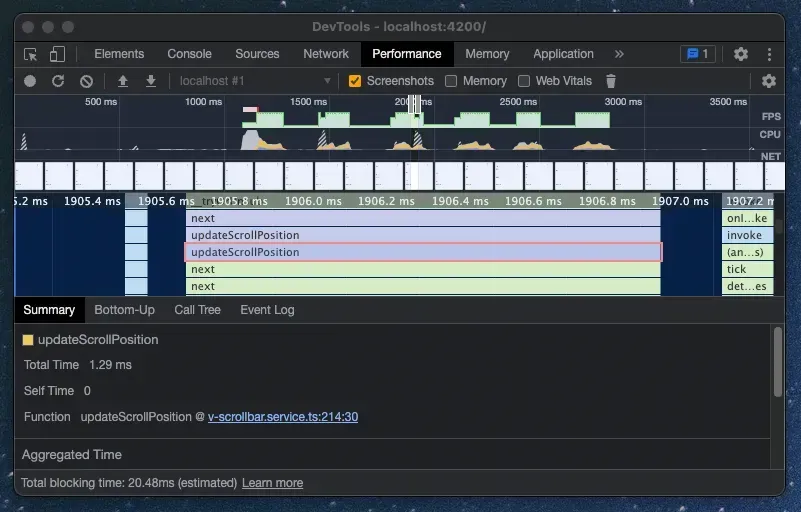
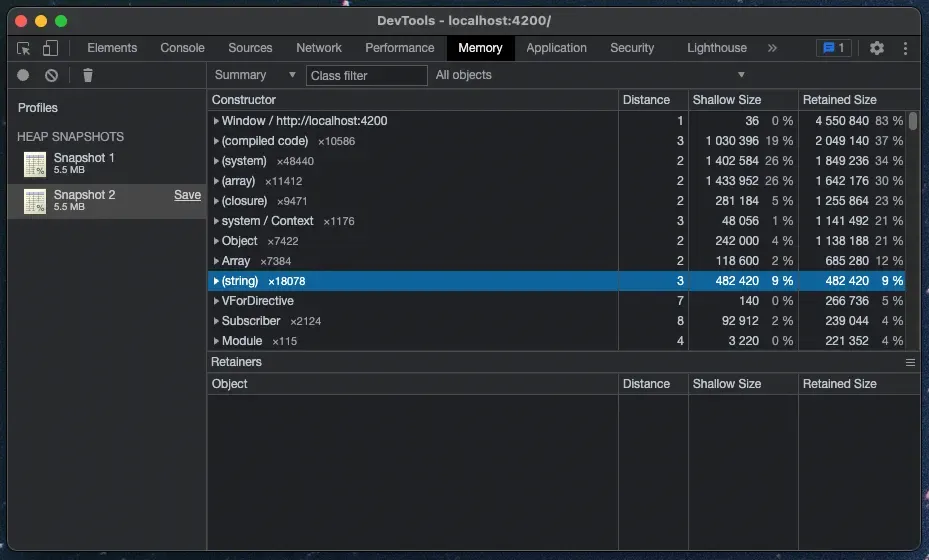
You probably use Chrome DevTools a lot already, but you may have little experience with the Performance and Memory tabs. The Performance tab evaluates the current site and helps you see visually where and how much delay occurs, and the Memory tab helps you see what is held in memory.
Based on the data from these tools, a developer can diagnose where performance problems occur, such as network communication or the rendering of a specific element. Combined with Chrome’s debugging mode, you can even measure exactly how much time a specific part of your code takes.
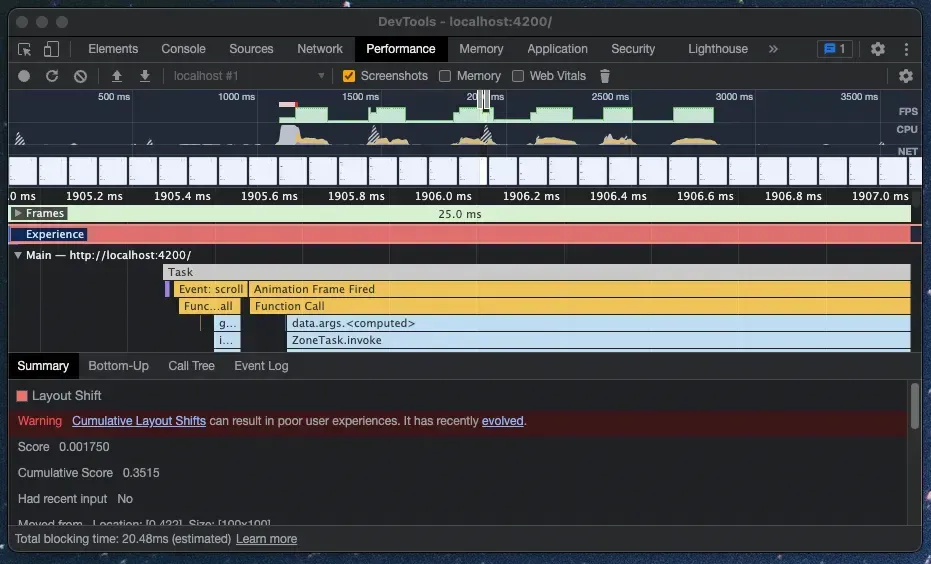
Even better, for problems Chrome can recognize, it proactively links to the cause and how to fix it. These days, I evaluate almost every performance problem with Chrome DevTools first, and I most prefer to approach and solve the problem objectively based on the measured data.
In the past, I had to choose a solution based on what I already knew. Now I can work from data and pick up only the knowledge a problem requires as I go, which I think is a faster and more efficient approach. I hope this post helps you understand performance and why tools are needed.
With that, I’ll wrap up. I hope my experience is helpful to others as well. Next time, I’ll write about actually evaluating and analyzing a performance problem with the developer tools.